

I am in shock and speechless.
Thank you! I don't have to spend hours trying to create this now. Work/Life balance here I come!

AI Tools for Adjusting Levels and Languages
Change reading level in seconds.
Helping every student access grade-level content shouldn’t take all day. Brisk does it for you — in one click — with our AI Text Leveler Tool and AI Translate Text Tool.
Try it now
.png)
01
Generate feedback in seconds
Provide effective feedback in six ways, align it with your uploaded rubrics or state standards, and share it in 50+ languages.
02
Personalize and adjust
Brisk does the heavy lifting — so you can personalize, adjust, and share with confidence.
03
Maintain full control, always
Feedback stays hidden from students until you've reviewed and approved it for posting.
Adjust reading levels with Brisk
Use Brisk to adjust the reading level of any online article or text to suit your students' needs, fostering accessible learning environments. Brisk identifies the original grade level of the content and enables you to modify it for 1st through 12th grade levels.
.png)
Translate tools for online materials
Effortlessly translate online texts, articles, and webpages into more than 58 languages to meet the varied needs of your multilingual classroom. With Brisk, ensure all students have equal access to resources, boosting inclusivity and participation.
%20(1).png)
Transform adapted texts into engaging classroom materials
Easily share adjusted texts with your students or turn them into high-quality classroom resources. With Brisk, adjusting reading levels is a breeze, allowing you to create a variety of engaging educational materials quickly, making lesson planning simpler and keeping students engaged.
%20(1).png)
Create content in 50+ languages — in just a click
Need a reading passage in Spanish? A science warm-up in Tagalog? Directions in Ukrainian?
Brisk AI Tools have you covered.
With Brisk, you can generate lessons, feedback, and activities in over 50 languages - no translating line-by-line, no awkward phrasing, and no extra tools.
.png)
How to translate and change reading level with Brisk
Brisk is here to support all teachers and learners without making you jump through tech hoops.
Here’s how:
01
02
03
04
01
Open the Brisk extension.
02
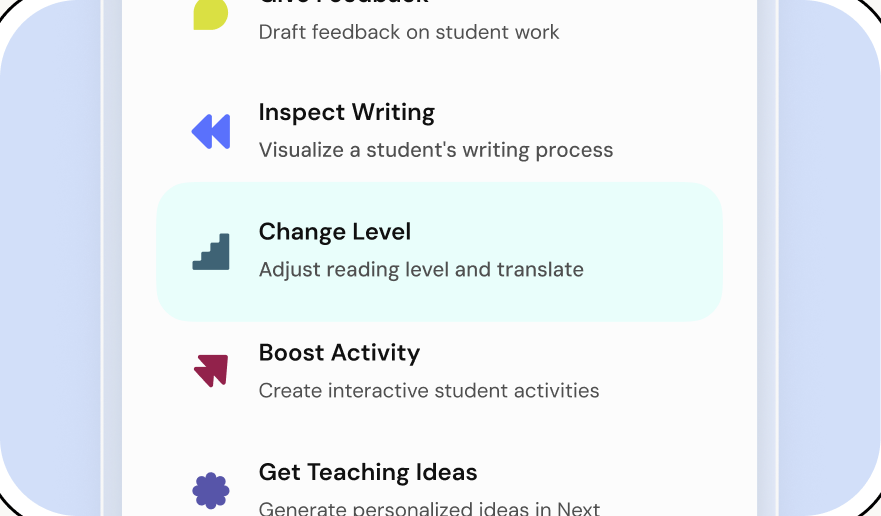
Click the Change Level button.
03
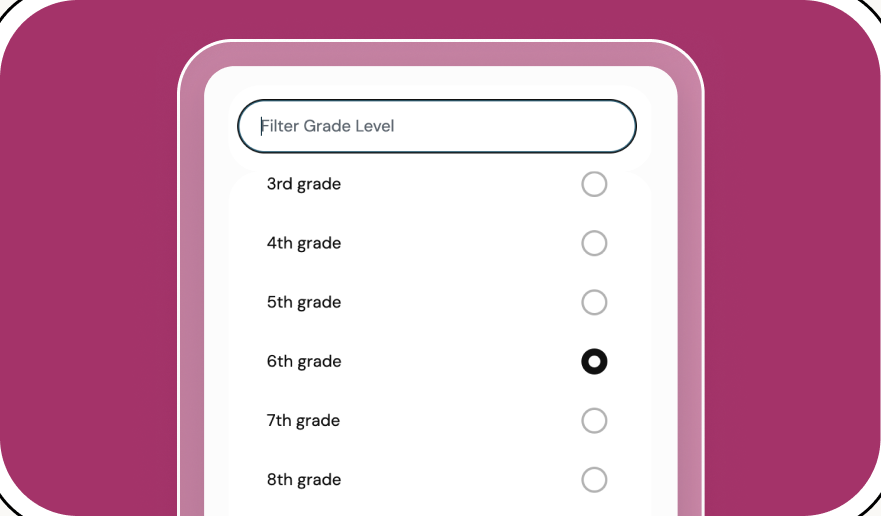
Select the grade level for your new resource.
04
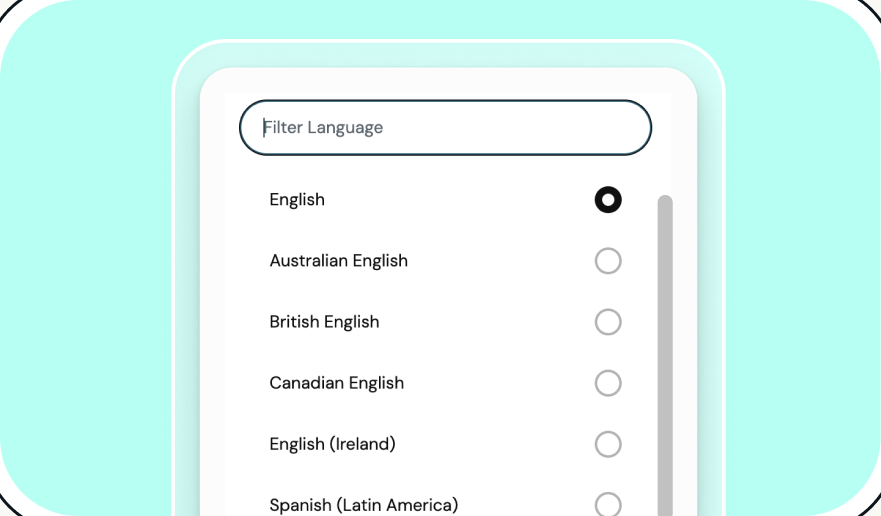
Choose your preferred
language(s).


Lighten your day with Brisk
Thank you! Your submission has been received!
Oops! Something went wrong while submitting the form.